

AI Insights Widgets
These steps will help you configure AI Insights widgets
The AI Insights Generator widget enables analysis of data widgets on the same report page. It uses AI to summarize performance, suggest improvements, and predict future outcomes—all directly within the template builder.
Adding an AI Insights Generator Widget to Your Template
1. Access the Ninjacat Template Builder
2. Select either an already existing template or create a new one from scratch
3. Click on the first tab in the inspector near the right to open the widget browser
4. Open the "Typography" area
5. Click on the icon for AI Insights Generator
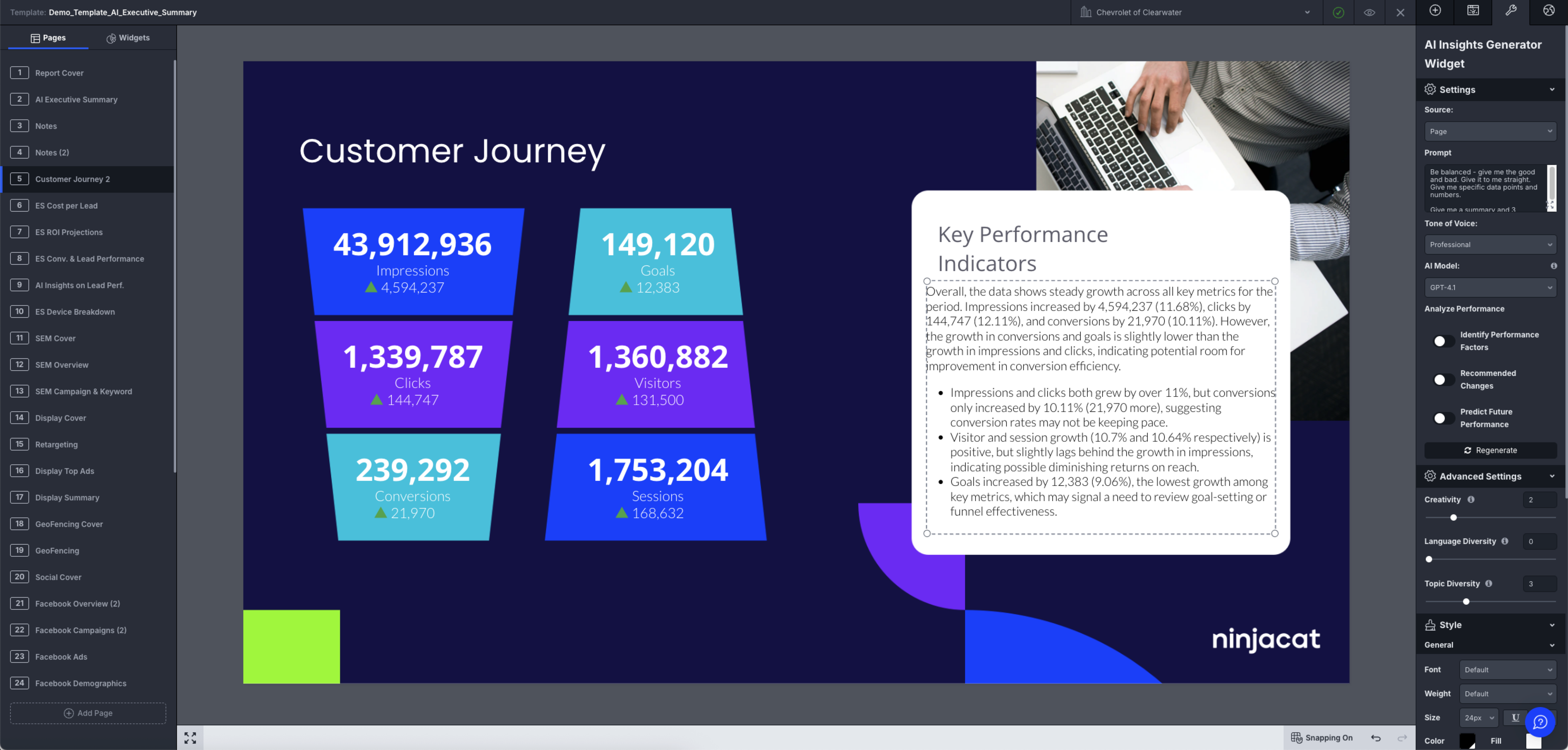
AI Insights Generator Widget Settings
This widget does not generate or display raw data. It interprets other widgets on the page and provides a human-readable response using AI.
Source
- Page — Analyze all data widgets on the current page
- Widget — Analyze a specific widget selected from a dropdown
You must select "Page" to enable analysis across multiple widgets. If "Widget" is selected, you will be prompted to choose a single widget from the list.
Pick Widget from Page
When the source is set to Widget, click the "Pick Widget from Page" button (located below the Selected Widget dropdown) to visually select the data widget you want the AI Insights Generator to analyze.
When activated:
- The left panel switches to the Widgets tab and the cursor changes to a crosshair
- Non-data widgets (such as text, image, shapes, or other AI widgets) are grayed out so they cannot be selected
- Data widgets (tables, charts, scorecards, etc.) highlight on hover — click one to set it as the source
- Press Escape or click the button again to cancel picker mode
After making a selection, the left panel returns to the tab you were previously viewing.
Locate Selected Widget
When a widget is already selected as the source, an eye icon appears to the right of the Selected Widget dropdown. Click this icon to jump directly to that widget on the canvas, selecting it and displaying its properties. This makes it easy to review or edit the data widget your AI Insights Generator is reading from without manually searching the page.
Prompt
Enter a custom prompt to guide the AI's focus.
- If left blank, the AI will perform a general analysis of the selected data.
Tone of Voice
Choose the tone in which the AI will write the response:
- Cheerful
- Collaborative
- Confident
- Enthusiastic
- Empathetic
- Informative
- Persuasive
- Professional (Default)
- Respectful
- Supportive
Model
Select the AI model you want to use for generating insights. The available models are:
- GPT-5.4 Thinking – OpenAI's latest reasoning model, ideal for deeper analysis and complex data interpretation
- GPT-5.2 Thinking – Powerful reasoning model for complex analysis requiring deep thinking
- GPT-5.2 Instant (Default) – Best balance of speed and quality for most use cases
- GPT-5 Mini – Faster, cost-effective option for simpler insights
- GPT-5 Nano – Fastest model for basic summaries and quick analysis
Selecting a ModelGPT-5.2 Instant remains the default model for all new and existing widgets. To use GPT-5.4 Thinking, select it from the Model dropdown in your widget settings. Your choice is saved per widget, so you can use different models on different widgets in the same template.
Note: If you were previously using an older model (GPT-4.x series), you've been automatically upgraded to GPT-5.2 Instant for improved performance. Legacy models have been retired from the selector.
Analysis Options
- Toggle on or off the types of insights you'd like to include:
- Identify Performance Factors
- Recommend Changes
- Predict Future Performance
Regenerate Button
- Use this button to force the widget to regenerate its output after making changes
- Helpful for testing tone or prompt adjustments
Advanced Settings
Adjust the behavior and variation of the AI response:
-
Creativity – Slider from 0–10 (Default:
2)
Controls how imaginative and free-form the AI output will be -
Language Diversity – Slider from 0–10 (Default:
0)
Higher values result in more varied sentence structures and vocabulary -
Topic Diversity – Slider from 0–10 (Default:
3)
Influences how many different themes or angles the AI explores in a single response
While you can use the AI Insights Generator multiple times per page, each instance should be clearly scoped (e.g., one for general performance, another for optimization ideas).
Updated 5 months ago