

Getting Help with Nina and the Support Hub
NinjaCat now includes a new version of Nina: an AI assistant powered by NinjaCat's Agents, and the Support Hub: a ticket portal — both designed to get you answers and resolutions faster, without leaving the app. Whether you have a quick question or need hands-on support, Nina and the Support Hub work together to keep things moving.
Nina (AI Chat Widget)
Where to Find Nina
Look for the floating chat button in the lower corner of the NinjaCat app. It's available on every page, so you never need to navigate away to get help.
The Nina Home Screen
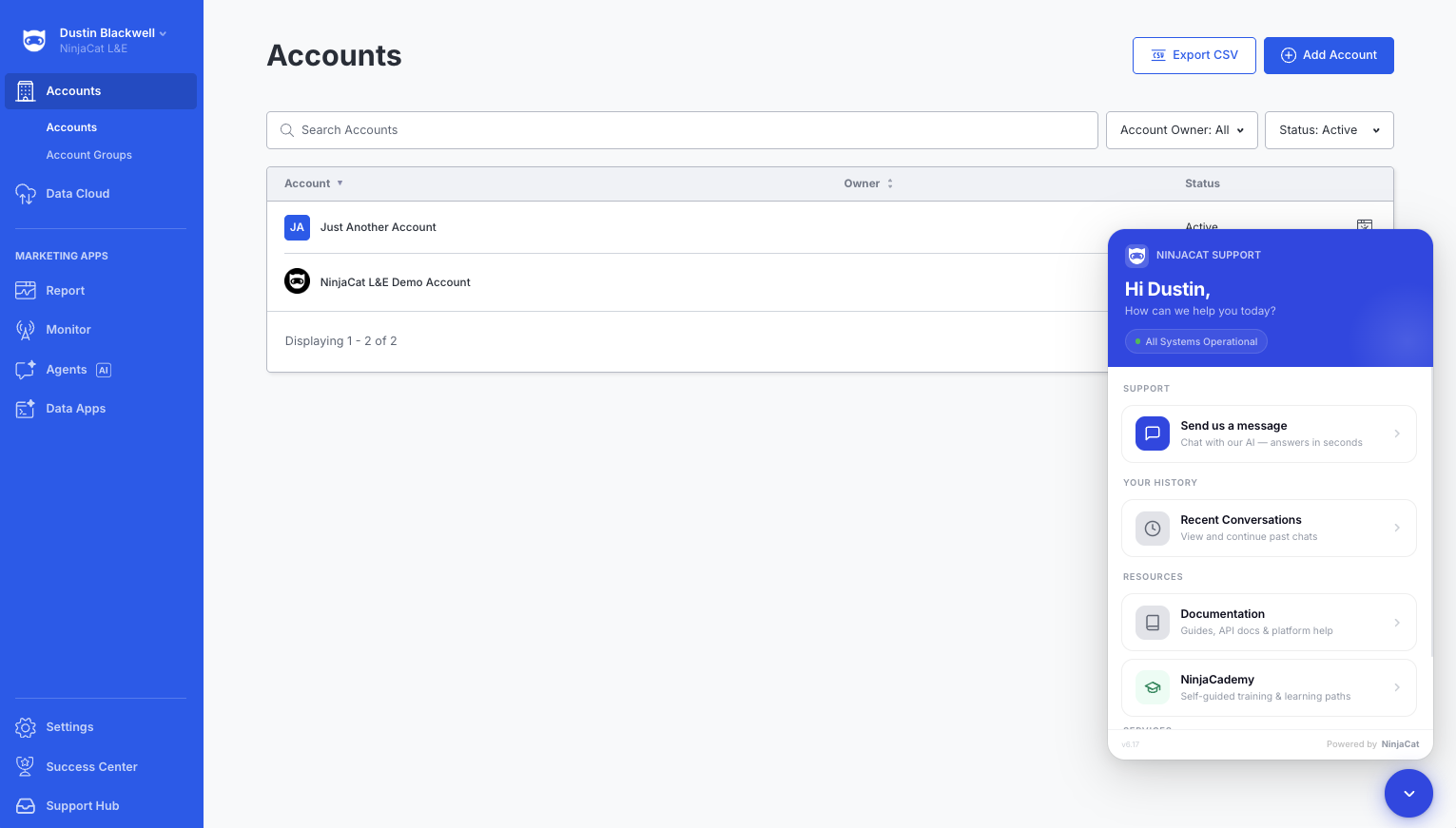
When you open Nina, you'll see a personalized greeting by your first name. The home screen includes:
- System status indicator — a live check showing whether NinjaCat services are running normally
- Navigation cards to get you started quickly:
- Send us a message — Start or continue a active conversation with Nina.
- Recent Conversations — View a history of and re-open conversations with Nina.
- Documentation — A link to our documentation site.
- NinjaCademy — A link to NinjaCademy where you can access self-guided training and certifications on the basic concepts required to be successful in NinjaCat.
Asking Questions
Nina supports multi-turn conversations — you can ask follow-up questions, clarify, or change direction without starting over. Nina searches NinjaCat documentation and NinjaCademy to give you accurate, platform-specific answers.
Context Awareness
Nina automatically knows which page you're on and can see most error messages displayed on your screen. You don't need to describe where you are or copy-paste error text — Nina already has that context and will factor it into her responses.
Attaching Screenshots
You can share a screenshot with Nina in two ways:
- Click the paperclip icon in the chat input to browse and attach an image
- Drag and drop an image file directly into the chat window
Nina will visually analyze the image and incorporate it into her response.
Automatic Ticket Creation
When Nina can't fully resolve your issue through conversation, she'll automatically work with you to create a support ticket in the background — no form to fill out. Here's what happens:
- Nina confirms your email address
- She creates the ticket on your behalf
- She replies in the chat with your ticket number and confirmation that your ticket has been created. Further interactions on this ticket will happen via your confirmed email address but can be monitored in our new Support Hub.
Persistence Within a Session
Your conversation with Nina stays open as you navigate around NinjaCat. You can browse to a different page and come back — the chat will be right where you left it.
Conversation History (Recent Conversations)
Where to Find It
Access your conversation history directly from the Nina home screen. It shows all of your past chats in one place.
What You'll See
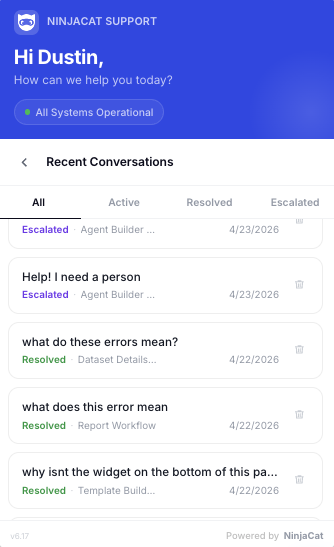
Each conversation displays a status badge so you know where things stand:
| Status | Meaning |
|---|---|
| Active | Conversation is still in progress |
| Resolved | Conversation wrapped up successfully |
| Escalated | Conversation became a support ticket |
Filtering Conversations
Use the tabs at the top to filter your list:
- All — every conversation
- Active — currently open chats
- Resolved — completed conversations
- Escalated — conversations that became tickets
Resuming a Chat
Click any Active or Resolved conversation to pick up exactly where you left off. Nina will have full context from the previous exchange.
Escalated Conversations Are View-Only
Once a conversation has been escalated to a support ticket, it becomes view-only in Recent Conversations. To continue the conversation, go to the Support Hub instead — that's where the ticket thread lives.
Deleting a Conversation
Each conversation in the list has a trash icon. Click it to delete — you'll be prompted to confirm before anything is removed.
Support Hub (Ticket Portal)
Where to Find It
The "Support Hub" link in the NinjaCat navigation
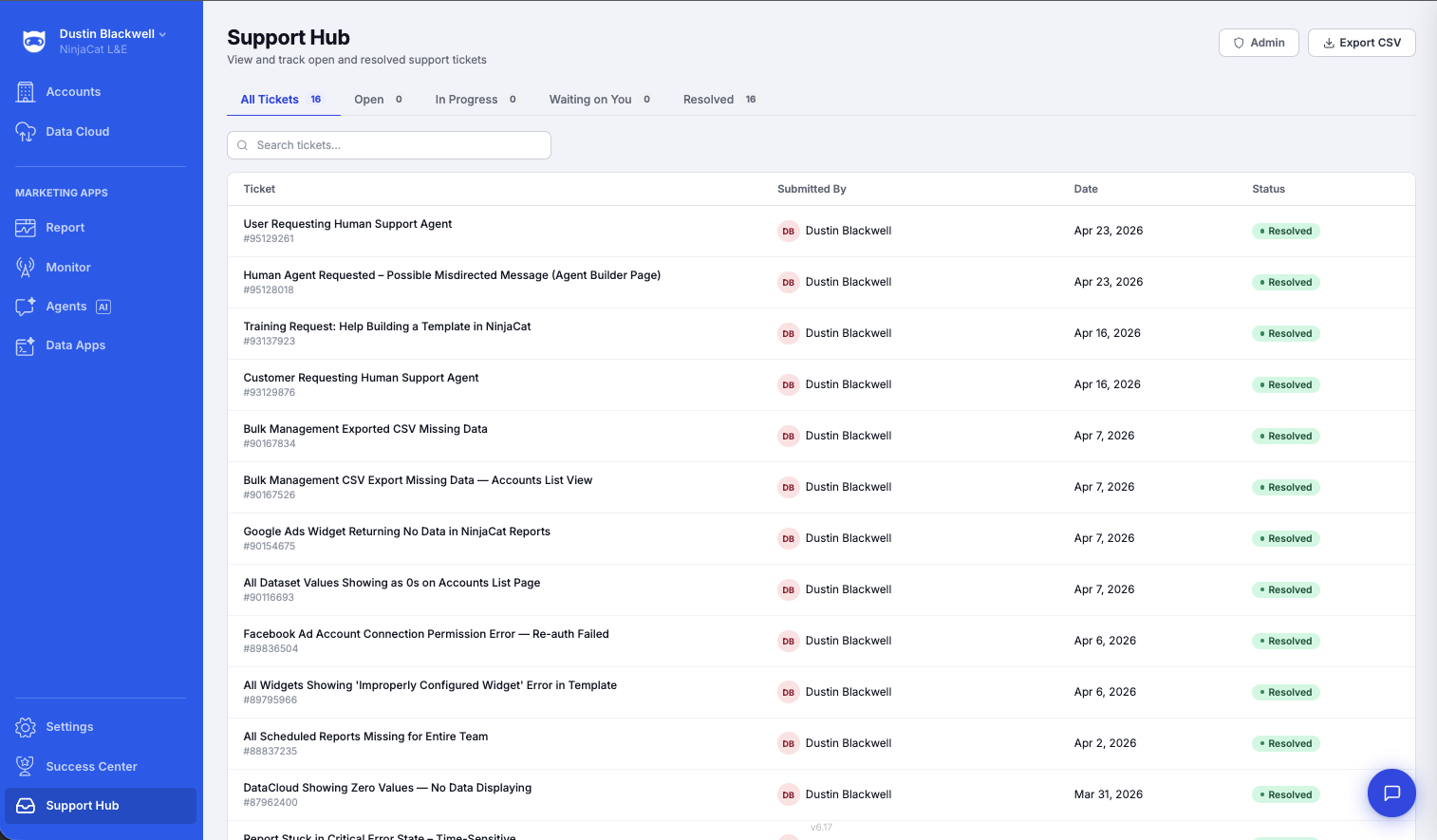
Here you will see all of the tickets that you have submitted to support including those submitted via Nina.
Team-Wide View (Only available to System Admins)
The Support Hub by default shows just tickets that you have submitted. However if your NinjaCat Account has the "System Admin" role assigned to it you also have the ability to see all tickets submitted by your team via the Admin Button. This makes it easy for System Admins to monitor the status of open issues across your organization.
Filter Tabs with Live Counts
Use the tabs along the top to quickly focus on what matters:
- All — every ticket from your team
- Open — newly submitted, not yet in progress
- In Progress — actively being worked on by NinjaCat support
- Waiting — needs a response from your team
- Resolved — closed tickets
Each tab displays a live count so you always know what's pending.
Searching Tickets
Use the search bar to find tickets by:
- Subject — keywords from the ticket title
- Ticket ID — if you have the number from Nina's confirmation
Ticket Detail Panel
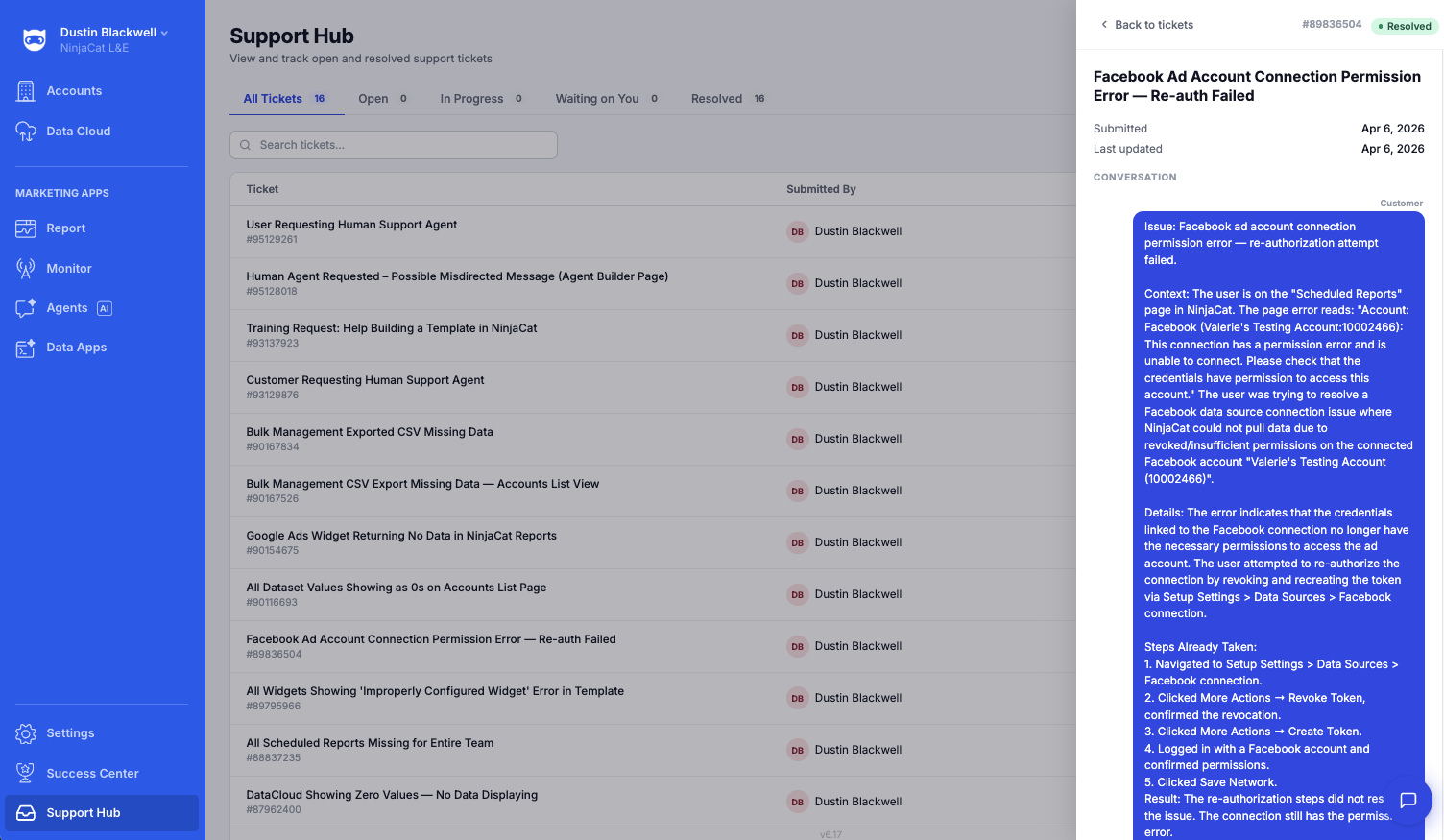
Click any ticket to open a side panel with the full conversation transcript, displayed as chat bubbles. You can see exactly what was discussed and how the issue progressed.
Export to CSV
Need to share ticket data or pull a report? Use the Export to CSV button to download the current filtered view. The export reflects whatever filter tab or search you have active.
Updated 5 months ago